MDV Installation on Linux, Mac, Windows (WSL2)
1. Introduction
Welcome to the MDV setup manual.
This document guides you through configuring MDV, either via pip installation or Docker containers, on localhost with Linux, Mac or Windows (WSL2).
2. Installation Methods
MDV can be installed in two ways:
- pip install (mdvtools) - Lightweight command-line interface for working with MDV projects
- Docker (Full Installation) - Complete web application with database backend and full UI
Comparison Table
| Feature | pip install (mdvtools) | Docker (Full Installation) |
|---|---|---|
| Installation Complexity | Simple (single pip command) | Moderate (requires Docker setup) |
| Dependencies | Python 3.12 | Docker, Docker Compose |
| Web Interface | ✅ Yes | ✅ Yes |
| Database Backend | ❌ No | ✅ Yes (PostgreSQL) |
| Command-Line Tools | ✅ Yes (mdvtools CLI) | ✅ Yes (inside container) |
| Authentication Support | ❌ No | ✅ Yes (optional) |
| Chat/AI Features | ❌ No | ✅ Yes (optional, with API key) |
| Multi-user Support | ❌ No | ✅ Yes |
| Use Case | Quick data processing, scripts, automation | Full web application, collaborative work |
| Port Requirements | None | 5055 (app), 5432 (database) |
| Resource Usage | Minimal | Moderate (containers + database) |
| System Requirements | Python + pip | Docker + 4GB+ RAM recommended |
3. Installation
Option 1: pip Installation (mdvtools)
If you only need the command-line interface for working with MDV projects, you can install mdvtools via pip.
Installation of mdvtools
To ensure a clean and isolated environment for your project, it's recommended to create a Python virtual environment. This helps manage dependencies and avoid conflicts with other projects. Follow these steps to set up a virtual environment and install mdvtools:
Create a Virtual Environment
Navigate to your project directory and run the following command to create a virtual environment named venv:
python -m venv venv
Activate the Virtual Environment
On Windows:
.\venv\Scripts\activate
On macOS and Linux:
source venv/bin/activate
Install mdvtools
With the virtual environment activated, install mdvtools using pip:
pip install mdvtools
By using a virtual environment, you ensure that mdvtools and its dependencies are contained within your project, reducing the risk of version conflicts.
This provides access to the mdvtools command-line interface for working with MDV projects programmatically. For more details see - Creating Projects.
Option 2: Docker (Full Installation)
1. Prerequisites
Hardware
- It is recommended you install MDV on a machine (or Virtual Machine) with at least 8GB RAM, 4 CPU cores and enough disk space to load raw and derived data.
- If using ChatMDV it is advisable to have much larger memory especially if planning to run scanpy functions within the LLM.
- For disk space, it's worth factoring in 1.5x to 2x the size of data you require to visualize.
Software
Presuming you are a sudo user, follow these steps to ensure your system is ready:
a. Install wget
Install wget
The MDV deployment script requires a command-line tool to download files (wget or curl).
Tips:
- Verify installation:
wget --version   # For macOS / Linux
curl --version   # For Windows
-
Windows
- No wget installation required — Windows 10/11 includes
curlby default.
- No wget installation required — Windows 10/11 includes
-
macOS
- Install wget via Homebrew:
brew install wget -
Linux
- Debian / Ubuntu:
sudo apt update && sudo apt install wget -y- Fedora / CentOS / RHEL:
sudo dnf install wget -y- Arch Linux / Manjaro:
sudo pacman -S wget
b. Install Docker (Version 20.10 or Later)
Install Docker
Docker v20.10+ includes Docker Compose by default, so no separate installation is required.
- Check if Docker is installed:
Run the following command in your terminal (works on Linux, macOS, and Windows):
docker --version
You should see output similar to:
Docker version 20.10.24, build 297e128
If installed, ensure it’s version 20.10 or later.
-
If Docker is not installed, follow these steps:
-
Windows 10/11 (Pro, Enterprise, or Home with WSL2):
-
Download Docker Desktop for Windows →
https://www.docker.com/products/docker-desktop/ -
Install and restart your system.
-
Ensure WSL2 (Windows Subsystem for Linux) and Virtualization are enabled.
wsl --install- Verify Docker Desktop is running in the system tray.
-
-
Linux:
- For Debian/Ubuntu/CentOS/Fedora
Install Docker using the official script:
curl -fsSL https://get.docker.com | sh- For Arch Linux:
Usepacmanto install Docker:
sudo pacman -S docker && sudo systemctl enable --now docker - For Debian/Ubuntu/CentOS/Fedora
-
macOS (Intel & Apple Silicon):
-
Install Docker Desktop from the official website:
https://www.docker.com/products/docker-desktop/ -
Or install via Homebrew:
brew install --cask dockerIf you don't have Homebrew, install it first:
/bin/bash -c "$(curl -fsSL https://raw.githubusercontent.com/Homebrew/install/HEAD/install.sh)" -
-
c. Start Docker Before Running the Script
Start Docker
Docker must be running before executing the MDV setup script.
-
Windows (Docker Desktop with WSL2):
-
Ensure Docker Desktop is running (check system tray).
-
If using WSL, start Ubuntu with:
wsl -d Ubuntu(This ensures the WSL2 backend is active.)
-
-
macOS (Docker Desktop):
- Start Docker from Applications folder, or run:
open -a Docker- If installed via Homebrew:
brew services start docker -
Linux:
sudo systemctl start docker
If systemctl is unavailable:
sudo dockerd
d. Ensure Ports 5055 and 5432 Are Available
Check Ports Availability
MDV requires port 5055 (application) and port 5432 (PostgreSQL).
Before running the deployment script, make sure these ports are free.
Check if the ports are in use:
-
Windows (PowerShell / WSL)
- Check if the ports are in use:
netstat -ano | findstr :5055netstat -ano | findstr :5432If a process is using these ports, you'll see an output like this:
COMMAND PID USER FD TYPE DEVICE SIZE/OFF NODE NAMEpython 1234 user 10u IPv4 12345 0t0 TCP *:5055 (LISTEN)- Terminate process if occupied:
taskkill /PID <PID> /F- If using WSL2 (Ubuntu) backend:
sudo lsof -i :5055sudo lsof -i :5432sudo kill -9 <PID> -
macOS
- Check if the ports are in use:
sudo lsof -i :5055sudo lsof -i :5432If a process is using these ports, you'll see an output like this:
COMMAND PID USER FD TYPE DEVICE SIZE/OFF NODE NAMEPython 4321 user 10u IPv4 0xabcdef123 0t0 TCP *:5055 (LISTEN)- Terminate process if occupied:
sudo kill -9 <PID> -
Linux
- Check if the ports are in use:
sudo lsof -i :5055sudo lsof -i :5432If a process is using the port, you’ll see something like:
tcp 0 0 0.0.0.0:5055 0.0.0.0:* LISTEN 5678/python- Terminate process if occupied:
sudo kill -9 <PID>- Alternative for older distros without
lsof:
sudo netstat -tulpn | grep :5055sudo netstat -tulpn | grep :5432sudo kill -9 <PID>
2. Installation Steps
Once the prerequisites are complete (Docker installed and running, ports free, wget or curl available), follow these steps to install MDV.
Linux/macOS
- If you are on Linux or macOS, directly jump to Step 1.
Windows
-
Start WSL (Windows Subsystem for Linux)
Windows users (WSL2 Ubuntu):
Open PowerShell or Windows Terminal and start Ubuntu:
wsl -d UbuntuThis opens an Ubuntu shell where all following commands should be executed, now go to Step 1.
1. Create a Deployment Folder and Download the Script
Attention: This software installation automatically creates a folder named mdv inside the user’s home directory. To avoid conflicts, do not install the software in the user's home directory and do not use mdv as the installation folder name.
- Run the following commands in your terminal (Linux/macOS/WSL Ubuntu):
mkdir deploy_folder && cd deploy_folder
- Download the deployment script:
wget --no-cache https://raw.githubusercontent.com/Taylor-CCB-Group/MDV/main/deploy.sh
Tip: If you are using Windows WSL and you get an error saying wget: command not found, that means wget isn’t installed yet.
wget must be installed inside Ubuntu. If not:
sudo apt update && sudo apt install wget -y
2. Make the Script Executable
chmod u+x deploy.sh
3. Run the Deployment Script
./deploy.sh
-
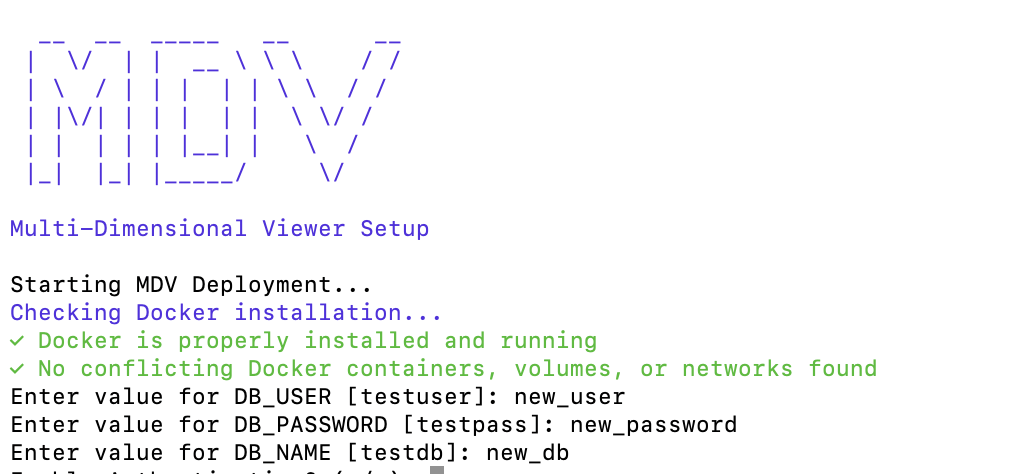
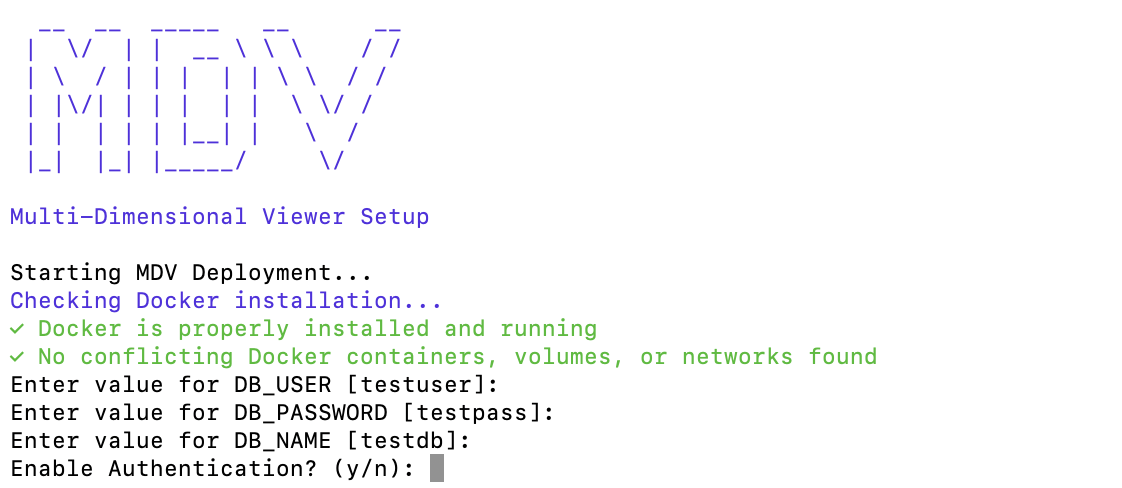
You will be prompted to configure environment variables:
- These environment variables define the core settings for MDV, such as database connection details (e.g., database name, user, and password), and optional feature flags.
- You can either:
- Enter new values → if you want to customize the configuration (e.g., use your own database credentials).
- Press Return → to keep the default values provided (for first-time setup or local testing).
(Fig 1 - Entering new values)
(Fig 2 - Keeping the defaults shown in '[]')
While running ./deploy.sh if you get an error related to arm64 in your macOS
Option A
- Either run the command below, from your cloned folder:
docker compose -f docker-secrets.yml up -d --force-recreate
Option B
- Or open your cloned folder (MDV) from VSCode editor with docker extension enabled. Press "cmd+shift P", while in the editor. Then select "Dev containers: Rebuild without cache". This will take about 1-2 minutes to complete.
-
Authentication (
auth_enable):- Controls whether user login and access restrictions are applied to the MDV portal.
- Enter
y→ enable authentication (recommended for multi-user or shared environments). - Enter
n→ disable authentication (suitable for personal/local use). - To enable authentication, please contact mdv@ndm.ox.ac.uk to request setup details.
-
ChatMDV support (
ChatMDV_enable):- Enter
y→ enable ChatMDV functionality (requires a validOPENAI_API_KEY). - Enter
n→ disable ChatMDV support.
- Enter
⚠️ Password inputs are hidden for security.
4. Verify Containers Are Running
docker ps
- Ensure that MDV services are listed and running as shown below.

5. Access the MDV Portal
- Open a browser and visit:
http://localhost:5055
✅ If everything is running correctly, the MDV portal should appear.
- Once you have installed MDV you can Upload a test project.